Audience: Company
Purpose
The Requester Limit found in each expense policy is an optional control that gives Company Admins an overall reimbursement cap for any single Requester.
Company Admins set a maximum reimbursement amount and a time range (in days). Reimbi then tracks each Requester's approved reimbursements within that window and automatically enforces the limit.
Example
You want to set a limit for all Requesters in your Staff Candidate expense policy* with a $850 limit over 3 days. This includes all the expense types that they may submit reimbursement for - meals, transportation, lodging, etc. You configure the enforcement mode 'Hard stop,' such that a candidate who has already been reimbursed $850 within the past year will be blocked from submitting additional reimbursable expenses.
Configuring your Requester limit with this Hard stop makes your approval process more efficient; you don't need to keep track of their total expenses or reject expense reports that exceed the expected limit.
* your expense policies and names will be specific to your company
How to configure Per-Requester limits
To set a Requester limit, go to Company Settings → Expense Policies, open the policy you want to configure, and select the Requester limit tab.
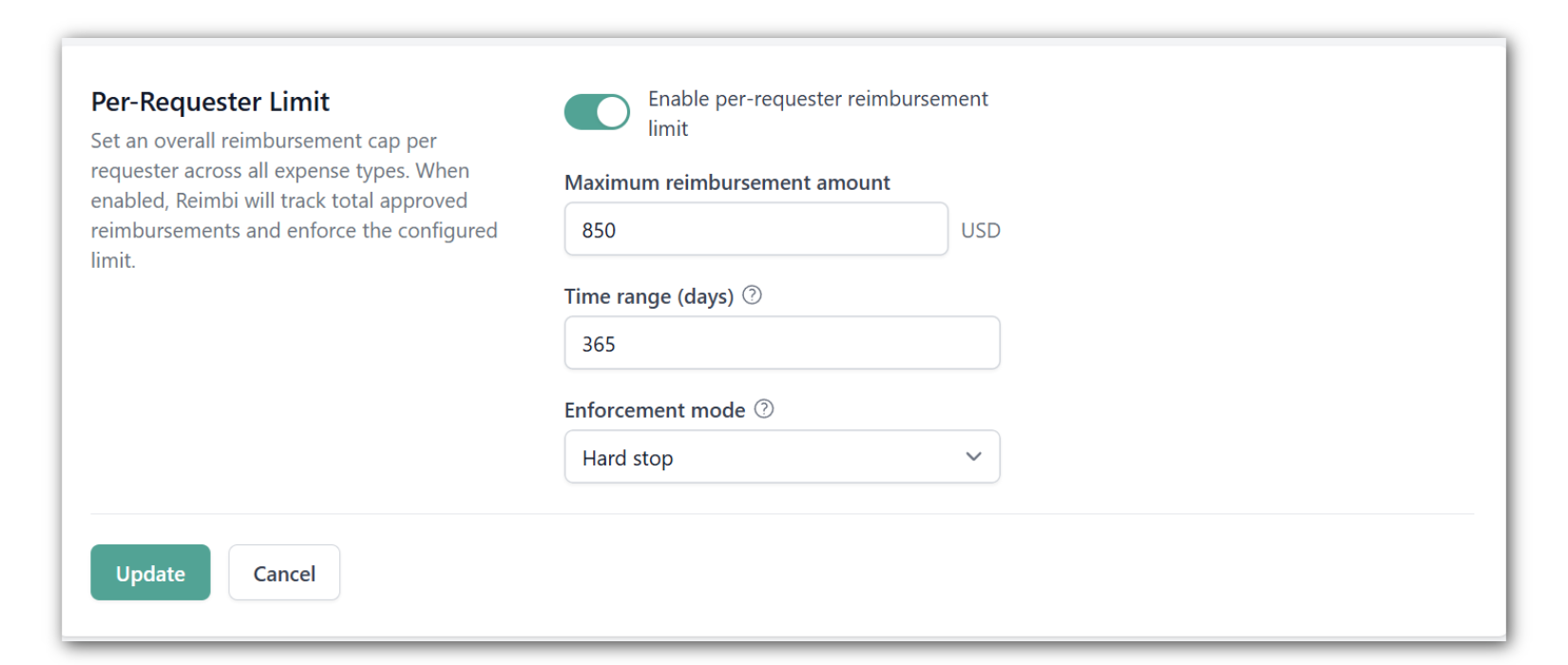
Settings
- This setting is disabled by default and only affects Requesters when enabled on their assigned policy.
- Enforcement mode
Warning mode: Requesters and Approvers see an alert when the limit is exceeded, but submission and approval can still proceed
Hard stop mode: Requesters are blocked from submitting once the limit is reached
Additional notes
- The limit is configured per expense policy. Each of your policies can have different limits, or none at all.
- Requesters are only subject to a limit if one is enabled on their assigned policy
- If a Requester moves to a different policy, the new policy's limit applies. But Reimbi still counts all previous reimbursements within the time window, regardless of which policy they were approved under.
*
Was this article helpful?
That’s Great!
Thank you for your feedback
Sorry! We couldn't be helpful
Thank you for your feedback
Feedback sent
We appreciate your effort and will try to fix the article